This tutorial shows you how to run code in the browser using the ShareCodeLive online compiler. You will write code, run it, and read the output, all without installing a language runtime or creating an account. The compiler supports JavaScript, Python, and C++, and each step has a screenshot so you can follow along.
Why run code in the browser?
Installing a language runtime on your machine takes time and breaks differently on different operating systems. A browser compiler removes that step. You open a tab, type, and see output. This is useful for trying a snippet, teaching someone, running an interview question, or pairing with a teammate who does not have the same tools installed. For more on when to use an online compiler versus a local IDE, read the comparison guide.
Step 1: Open a workspace
Start from the ShareCodeLive homepage and create a workspace. Once you are in the editor, you see the code area, a console panel at the bottom, and a language selector on the tab.
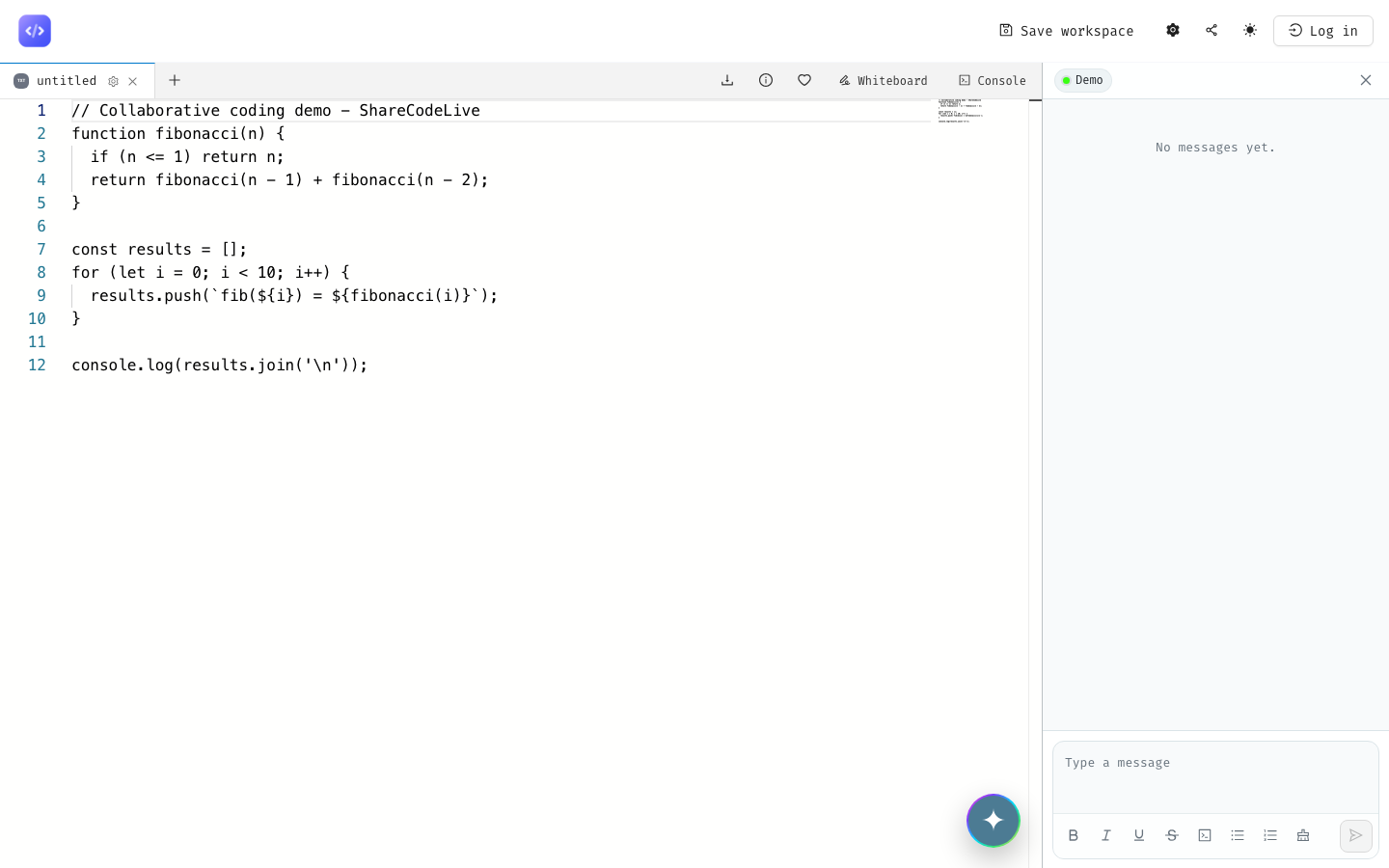
The console panel at the bottom is where your output will appear. The language label on the tab tells you which runtime the compiler will use.
Step 2: Run JavaScript
JavaScript is the default language. Type the following in the editor:
function fibonacci(n) {
  if (n <= 1) return n;
  return fibonacci(n - 1) + fibonacci(n - 2);
}

for (let i = 0; i < 10; i++) {
  console.log(`fib(${i}) = ${fibonacci(i)}`);
}
Click the run button in the header. The output appears in the console panel:
fib(0) = 0
fib(1) = 1
fib(2) = 1
fib(3) = 2
fib(4) = 3
fib(5) = 5
fib(6) = 8
fib(7) = 13
fib(8) = 21
fib(9) = 34
You did not install Node.js. You did not open a terminal. The code ran in the browser and the output is right there.
Step 3: Run Python
To switch to Python, click the gear icon on the tab header and select Python from the language dropdown. The editor updates the syntax highlighting to match.
def is_prime(n):
    if n < 2:
        return False
    for i in range(2, int(n ** 0.5) + 1):
        if n % i == 0:
            return False
    return True

primes = [n for n in range(2, 30) if is_prime(n)]
print("primes under 30:", primes)
Click run. The console shows:
primes under 30: [2, 3, 5, 7, 11, 13, 17, 19, 23, 29]
No Python install. No pip. No virtual environment. The browser compiler handled it.
Step 4: Run C++
Switch to C++ from the same language dropdown. C++ is the language where the install story is usually the worst, because it needs a compiler, a linker, and a standard library. In the browser, none of that matters.
#include <iostream>
#include <vector>
#include <algorithm>

int main() {
    std::vector<int> nums = {5, 3, 8, 1, 9, 2, 7};
    std::sort(nums.begin(), nums.end());

    std::cout << "sorted: ";
    for (int n : nums) {
        std::cout << n << " ";
    }
    std::cout << std::endl;
    std::cout << "sum: " << [&]() {
        int total = 0;
        for (int n : nums) total += n;
        return total;
    }() << std::endl;

    return 0;
}
Click run. The console shows:
sorted: 1 2 3 5 7 8 9
sum: 35
Step 5: Share the running session
Because the compiler is part of a collaborative code editor, the person you share the workspace link with sees the same code and the same output. If you change the code and re-run, they see the new output too. This is what makes the browser compiler useful for more than solo work.
For an interview, the candidate writes code and runs it, and you both see the result in one place. For teaching, the student runs code and gets instant feedback without a setup step. For pair programming, both people iterate on the same running environment instead of passing a laptop back and forth.
What you can and cannot do in the browser compiler
The browser compiler is a session tool, not a deployment environment. It is the right place for writing, testing, and sharing code interactively. It is the wrong place for anything that needs a long-running process, a database connection, or a custom library that is not part of the standard set.
If you want to go deeper, the tutorial on starting a collaborative session covers the workspace setup, and the whiteboard tutorial shows how to sketch alongside your code. The pair programming comparison ranks the free browser editors if you are choosing between them.