This is a hands-on tutorial on starting your first collaborative coding session in ShareCodeLive. By the end you will have a shared workspace open, a link to send to a collaborator, and code running in the browser. Every step has a screenshot so you can follow along visually. No account and no install are needed.
What you will need
A browser tab and someone to code with. That is the whole list. ShareCodeLive runs entirely in the browser, so there is nothing to install and no account to create for an ad-hoc session. If you want to try the steps alone first, you can open the workspace link in a second tab and watch both cursors move.
Step 1: Open the ShareCodeLive homepage
Go to ShareCodeLive in your browser. The homepage shows what the product does and has a "Create Workspace" button to get you started.
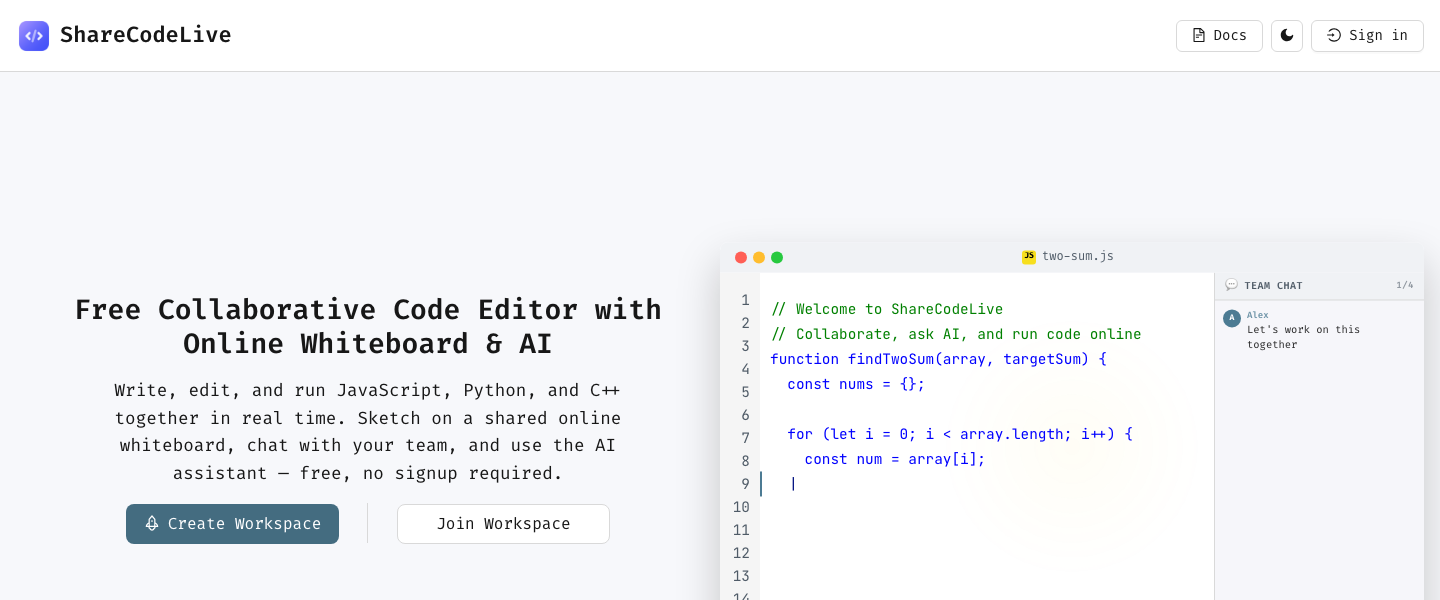
The hero section explains in one line what ShareCodeLive is: a collaborative code editor with a whiteboard, compiler, and AI assistant. The primary button takes you straight into the editor.
Step 2: Enter your name to create a workspace
After clicking "Create Workspace", you land on the entry screen. Type a display name so others in the session can see who you are, then click "Create Workspace".
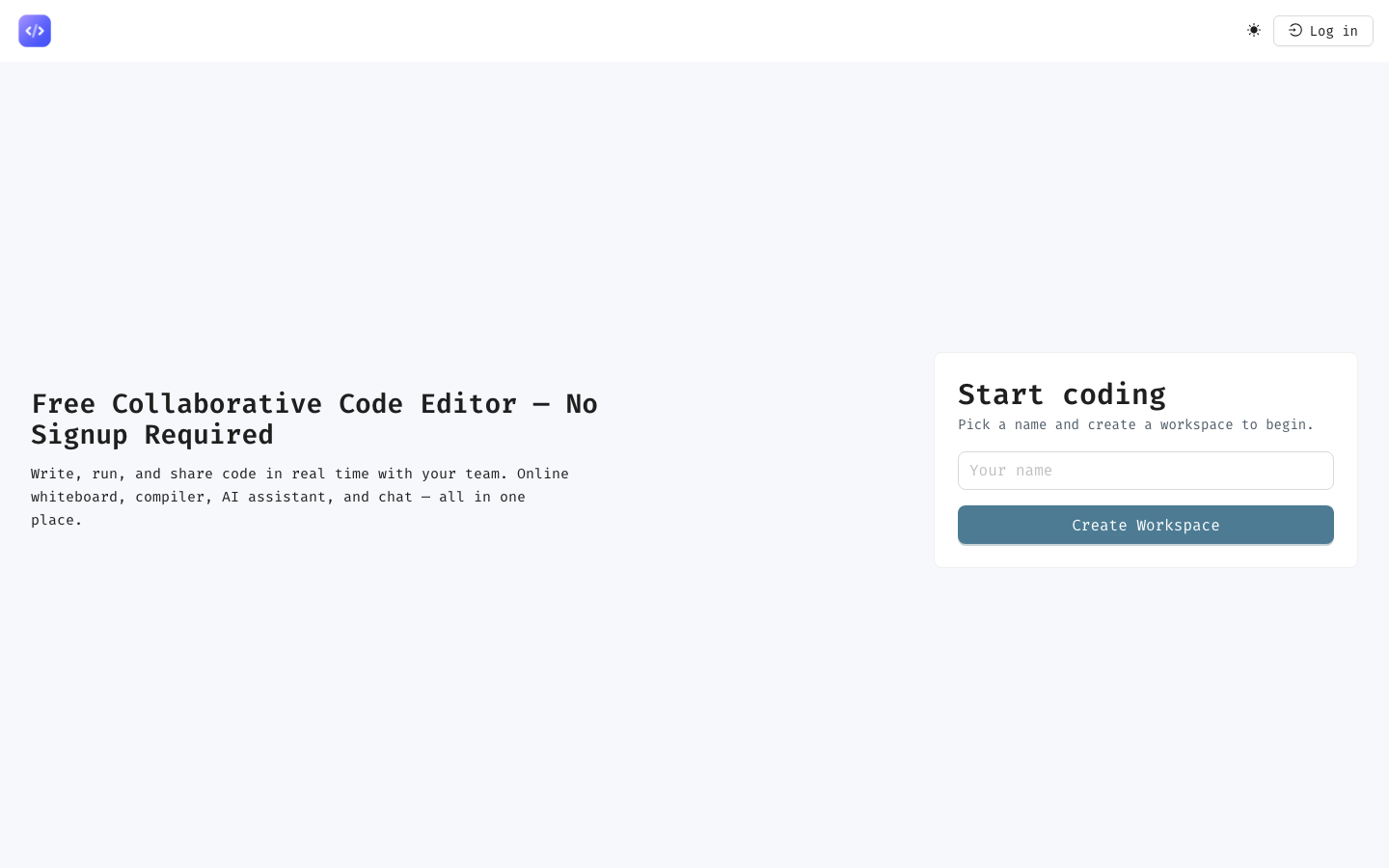
The name field is the only required input. You do not enter an email or a password. ShareCodeLive generates a random workspace ID for you behind the scenes, and that ID is what identifies the session.
Step 3: Your workspace opens
The editor appears with a Monaco-based code editor (the same editor that powers VS Code), a console panel at the bottom, a whiteboard tab, and a chat panel on the right.
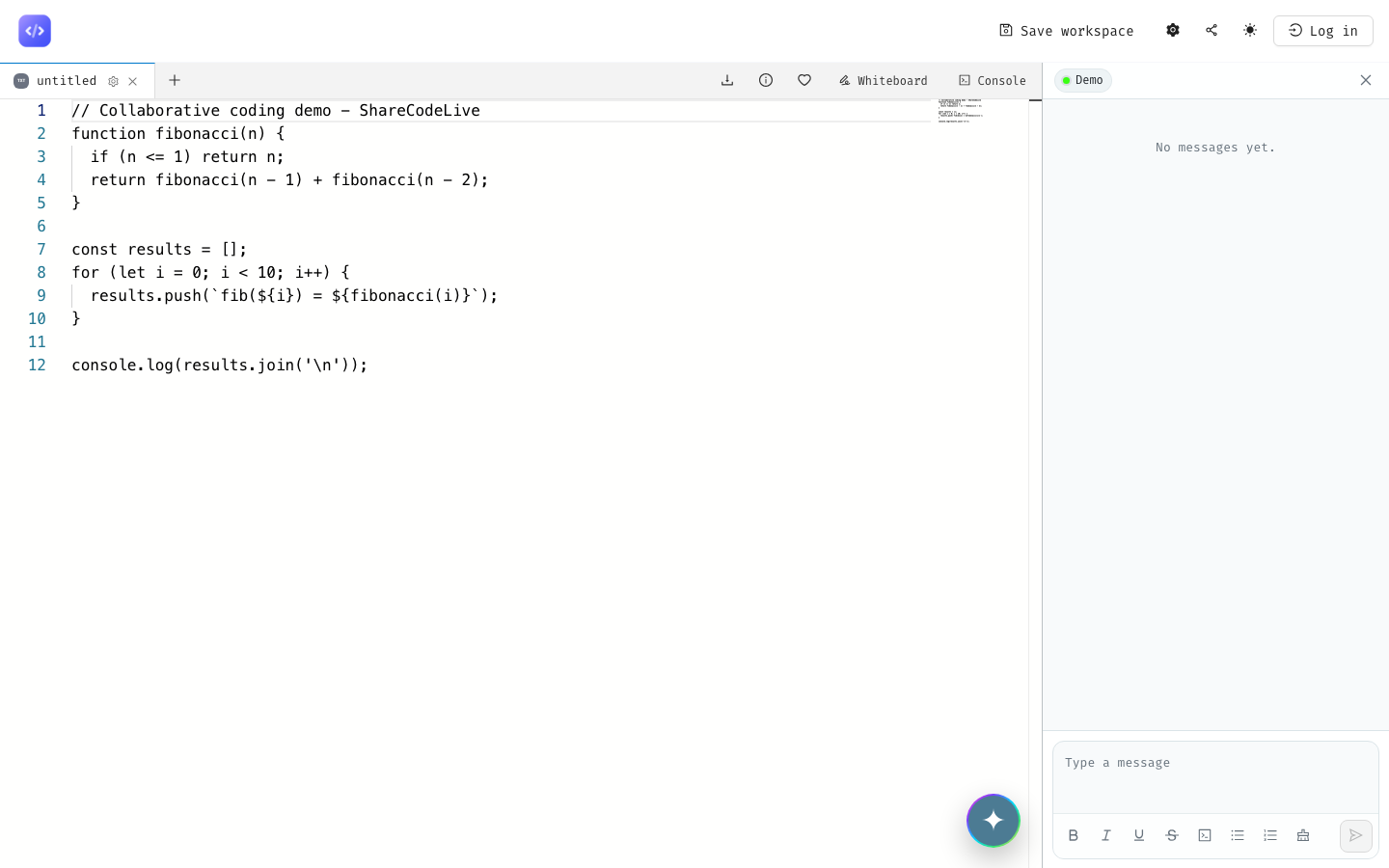
The workspace has four main areas. The editor sits in the center where you type code. The console at the bottom shows output when you run your code. The whiteboard tab lets you switch from code to a drawing surface for diagrams. The chat panel on the right is where you and your collaborator talk without leaving the editor.
Step 4: Share the workspace link
To invite someone, copy the URL from the address bar. It contains the workspace ID as a query parameter. Send that link to your collaborator through any channel: Slack, email, a calendar invite.
When they open the link, they are asked for their name and dropped into the same workspace. You see their cursor in real time. They see yours. Both of you can type into the same files, run code, and chat. If the connection drops for a moment, the edits sync automatically when you reconnect, because the editor uses a CRDT-based sync algorithm that converges without conflicts.
Step 5: Pick a language and start coding
The editor defaults to JavaScript. You can change the language from the tab settings (the gear icon on the tab header). The online compiler supports JavaScript, Python, and C++, while syntax highlighting works for most popular languages.
For a quick test, type something simple and hit the run button. The console at the bottom shows the output.
console.log('hello from our shared session');
const numbers = [1, 2, 3, 4, 5];
console.log('sum:', numbers.reduce((a, b) => a + b, 0));
You and your collaborator both see the same output. If one of you edits the code, the other sees the change immediately. There is no "save and refresh" step.
Step 6: Save your workspace (optional)
If you want to come back to the workspace later, you can save it by creating an account. The account links the workspace to your profile so you can reopen it from the "Workspaces" page. For a throwaway session, you do not need to do this. You can also download the code as a text file or zip directly from the editor header at any time.
What you have now
You have a live workspace with a running editor, a shared link your collaborator can open, and code that runs in the browser. The session stays open as long as the browser tab is open. When you are done, just close the tab.
For the next steps, read the tutorial on running code with the online compiler and the whiteboard tutorial. The pair programming tools comparison puts ShareCodeLive next to other options if you are evaluating tools for a team. The FAQ answers the security and language questions people usually ask next.